
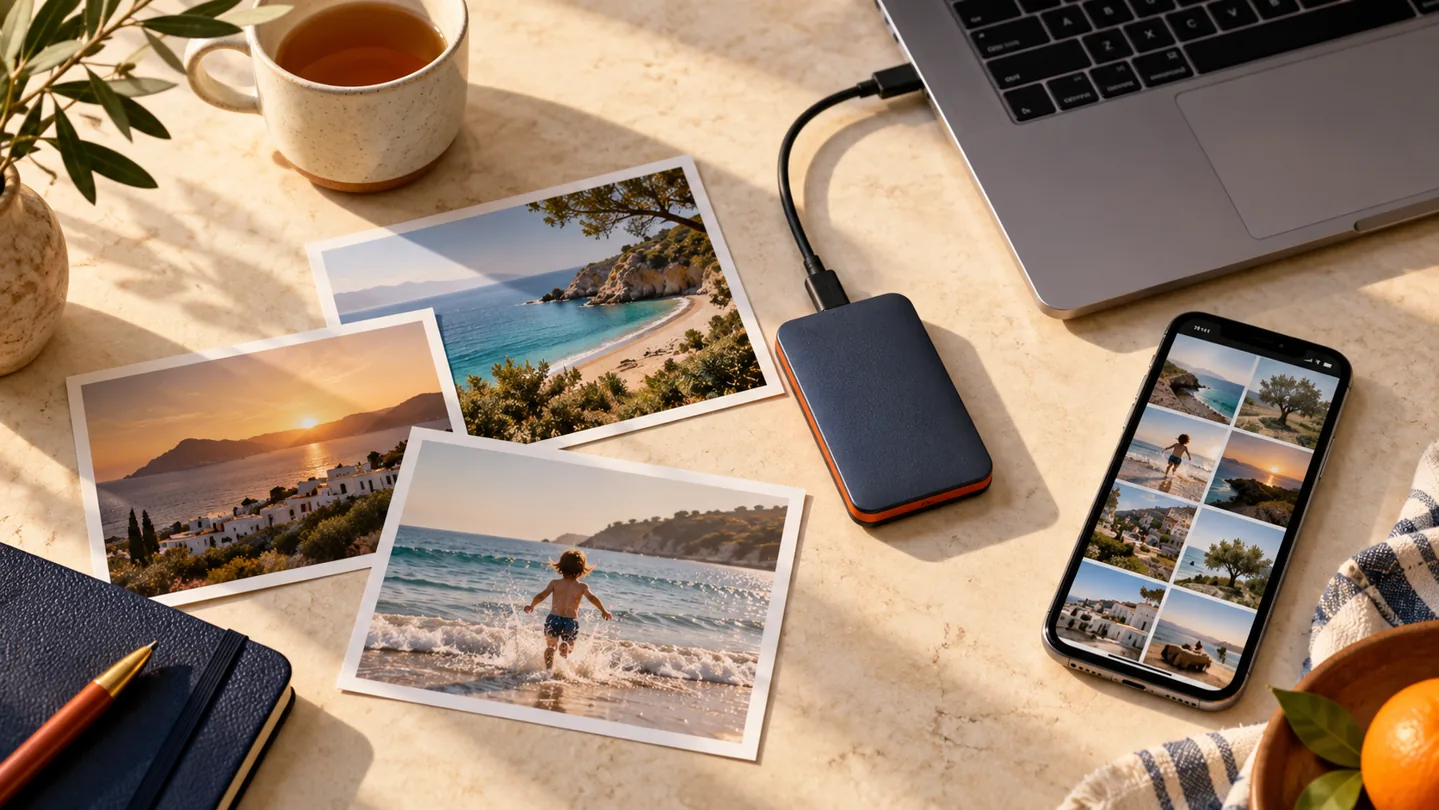
Holiday photos. The kids growing up. A scan of an old family picture. These are often the files we care about most, even when they are scattered across a phone, an old laptop and a drawer full of drives.
A backup is a separate copy you can use if the original disappears. The aim is simple: if one device stops working, you still have another way to get your memories back.
Start with what you would miss
Before buying anything, write a short list. It might be your phone photos, important documents and one folder on the family computer. Check where those files actually live.
Do not assume the old drive in a cupboard is up to date. Open it and look at the dates. You may find that the last backup happened before your most recent holiday.
Choose a second place for a copy
A suitable cloud backup service can keep a copy away from your home. An external drive gives you another option, especially for larger collections. Whichever you choose, check the available space, what is included and how you would recover your files.
If you use an external backup drive, safely disconnect it when the backup is finished. Keep it somewhere secure. A drive sitting beside a laptop is useful for a device failure, but both could still be lost in the same accident.
Know the difference between syncing and backing up
Syncing helps keep files the same across devices. That is handy, but a deletion can also spread. A photo removed on your phone may disappear from other places connected to that account.
Some services keep deleted files or older versions for a limited time. Check your service’s rules rather than assuming they stay there forever. For irreplaceable photos, consider an additional separate copy.
Make it a habit you can keep
Choose a regular time to check your backup, such as the first Sunday of the month. Automatic backups can help, but still check for warnings, full storage or an account that has stopped signing in.
After a big family event or holiday, make sure the new photos are included. Before wiping, selling or replacing a device, confirm that your important files are safely copied and accessible.
A small plan for this weekend
- Find the photos and documents that matter most.
- Choose a suitable separate backup location.
- Run the backup and check for errors.
- Restore and open a sample file.
- Set a reminder to check it again.
Not sure which copy is the right one? We can help organise the files you already have and set up a routine that makes sense for you. You do not need to know the technical terms.
Sources & further reading
Sources checked on 28 October 2026. This article is written by LyrebirdTech in plain English. Links below are optional background reading.