
You go to save a photo or install an update, and the laptop tells you it is full. The temptation is to start deleting whatever looks large. Give yourself a minute before doing that.
A full drive does not mean all your files are rubbish. It usually means you need a clearer view of what is there. These steps are for Windows 11, and the names of a few menus can vary between versions.
First, see where the space went
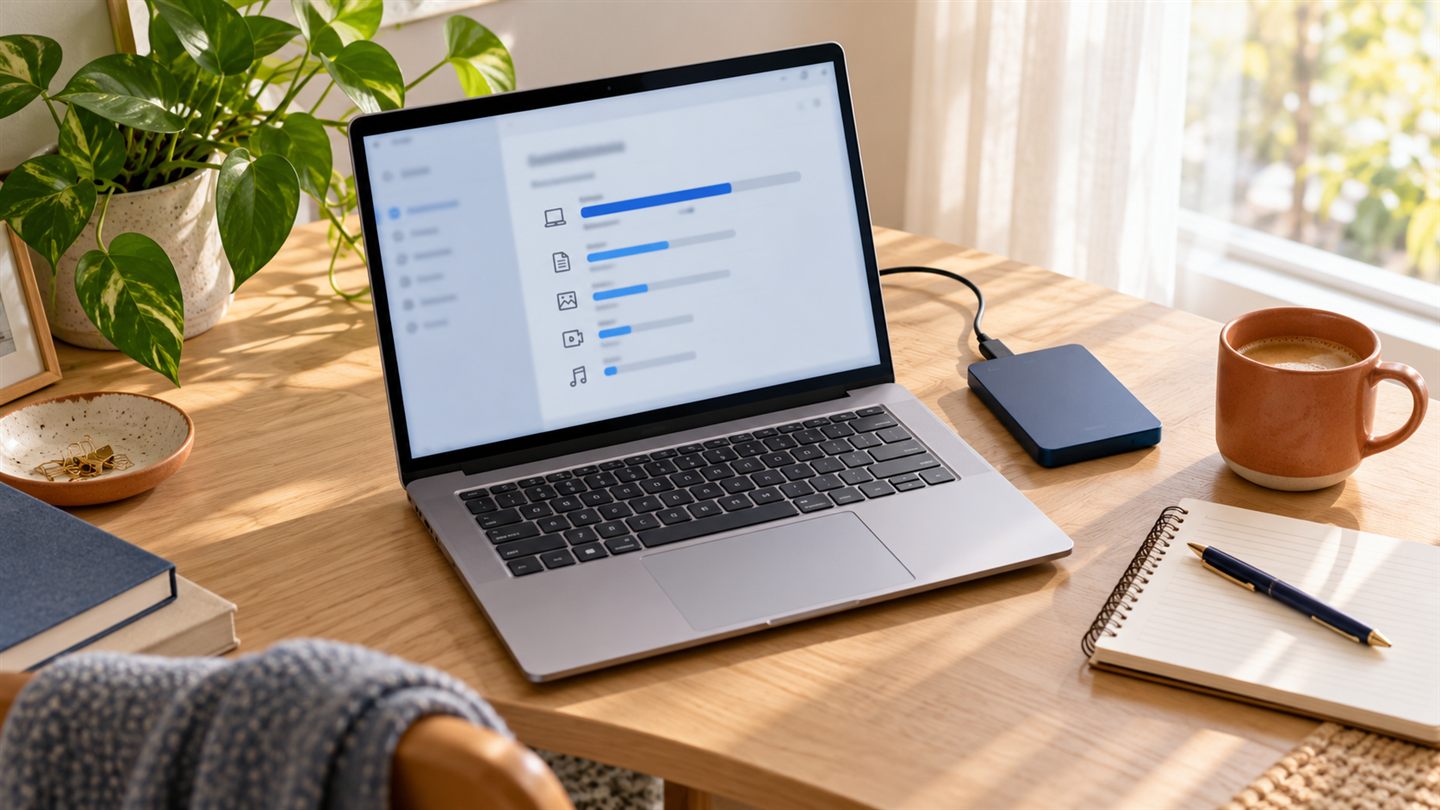
Open Start, Settings, System, then Storage. Let the categories finish loading. You may find that apps, videos or temporary files are taking up more room than you expected.
Pick one category to look at. There is no need to clear the whole computer in a sitting. The aim is to make useful room while keeping the things you care about.
Review the suggestions before removing anything
In Storage, open Cleanup recommendations. Windows groups possible clean-up items and estimates the space you could recover. Read each selection before choosing Clean up. A suggestion is not an instruction to delete everything.
Be particularly careful with Downloads and anything described as a previous Windows installation. Downloads may include documents you still need, and removing an old Windows installation can remove the option to return to it.
Make automatic cleaning work for you
Windows also has Storage Sense, in the same Storage settings. It can clear temporary files and manage older Recycle Bin items. Open its settings and review the schedule and deletion choices before switching it on.
Keep automatic cleaning of Downloads off unless you understand and want it. Review any cloud-file options too: making a file online-only saves local space, but opening it later may need an internet connection. Mark important OneDrive files “Always keep on this device” if you need them offline.
Give the keepers a proper home
If family videos are taking most of the room, decide where you want to keep them before moving anything. Copy a small batch first, open the copies to check them, and keep a separate backup of anything irreplaceable.
An external drive holding the only copy of a photo is still just one copy. Our simple photo backup guide explains how to give your favourites a second home.
Stop when you have made enough room
Check the free-space figure again after each change. If it is enough for what you were trying to do, you can stop. There is no need to chase a perfectly empty drive.
If the space fills straight back up, or the laptop is still struggling, a tidy-up may not be the whole answer. We can help you work out what is using the storage and discuss the next step before you buy anything.
Sources & further reading
Sources checked on 30 October 2026. This article is written by LyrebirdTech in plain English. Links below are optional background reading.